
WhatsApp Business App: 7 Free Tools Construction Bosses Ignore
Most construction bosses run their crew on normal WhatsApp. There is a second app, called WhatsApp Business, that is free and built for exactly this: answering the same questions over and over, and keeping lads and customers sorted.
Hardly anyone on a site uses it. Here are the features worth knowing about, what it still can’t do, and whether it’s worth switching. It works for any trade, from scaffolders to sparkies, plumbers and roofers.
What WhatsApp Business is, and what it costs
WhatsApp Business is a separate app from the one you already have. It’s free to download, and it looks and works almost the same, so your lads won’t notice a difference when they message you. It adds tools for running a business on top.
Everything below is built into the app on your phone, so there’s nothing to set up on a computer.
The one catch: it needs its own number
The Business app can’t share a number with the normal app at the same time. So you have two choices.
- Get a second number for the firm. An eSIM is the easy way: it’s a digital SIM with no plastic card, you set it up on your phone in minutes, and pay-as-you-go ones are cheap. Check your phone supports eSIM, and that the eSIM can receive texts, because WhatsApp sends a code by text to check the number. A cheap SIM or a second phone works too. Keep your personal WhatsApp for family and mates.
- Move your current number over to the Business app, and bring your chats with you.
I’d go for the first one. Your lads and customers get one number for the firm, and your personal chats stay out of it. You can have both apps on the same phone, each with its own number. I’ve checked this on my own phone. Normal WhatsApp can now hold two accounts inside one app, but the Business app only lets you have one.
A link and a QR code that opens a chat with you
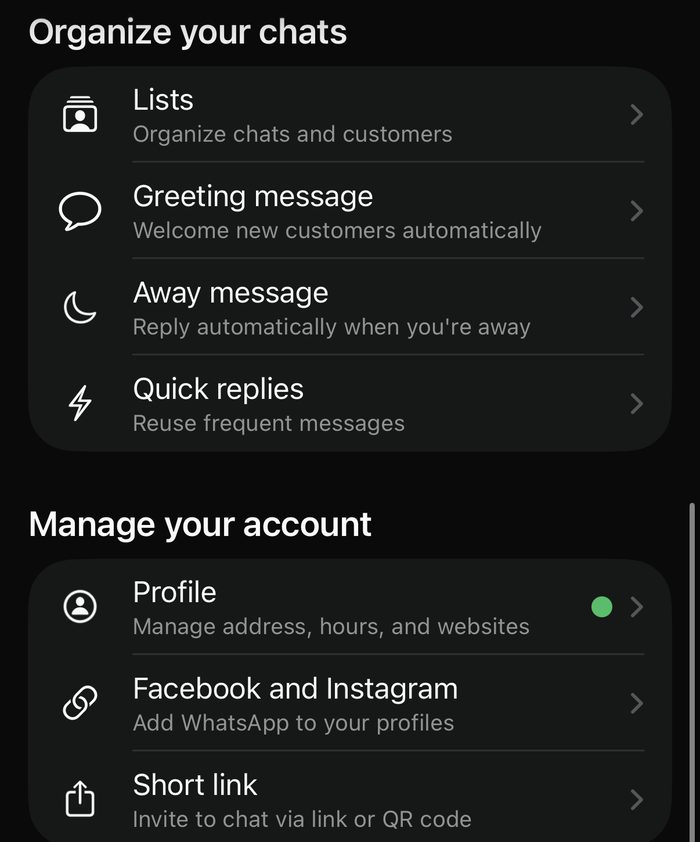
The Business app gives you a short link and a QR code. You’ll find it in the Tools tab, under Short link. Tap the link, or scan the code with a phone camera, and a chat with your number opens. You can type the first message for them in advance, like “Hi, I’m starting on Monday”.
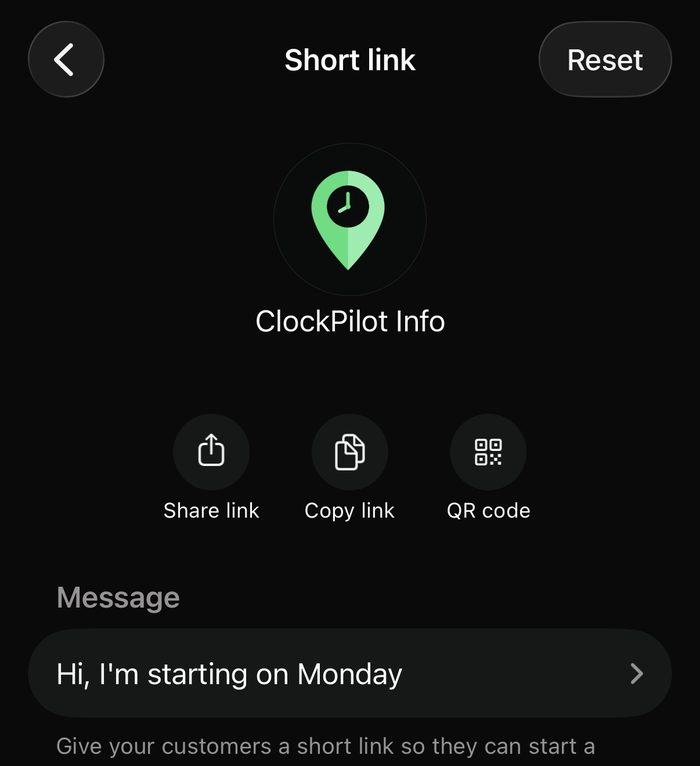
Put the QR code on the site gate, the van, or the job sheet. A new lad scans it and he’s in a chat with you, and you’ve got his number without anyone typing it in. For more on how to organise those chats once you have them, see my WhatsApp guide for construction bosses.
Quick replies for the questions you answer every day
You save a message once, and call it up by typing a short code. You’ll find it in the Tools tab, under Quick replies. Type / in any chat and your quick replies pop up. Tap one and the whole message fills in, ready to send. So a shortcut called “yard” can bring up the full address of the yard, and “start” the start time and what to bring. The app also suggests a few ready-made ones, like address and hours, that you just tap to set up.
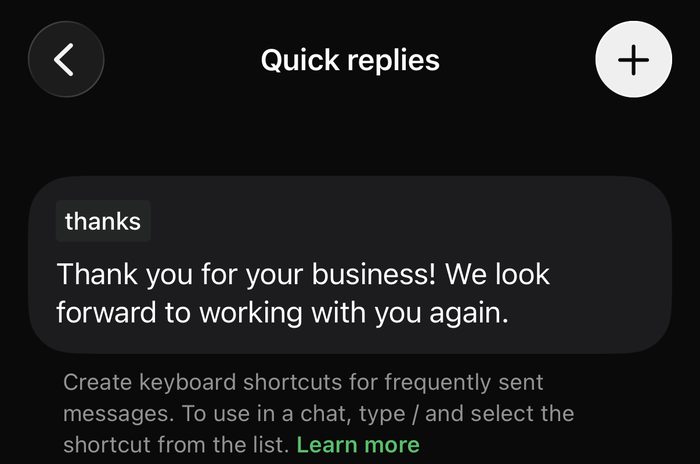
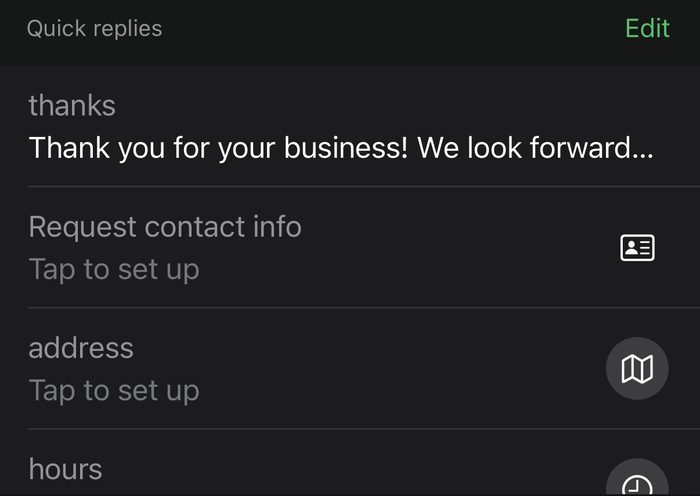
Good ones to save: where the yard is, what time to be on site, what PPE to bring, pay day, and who to ring if you’re running late. It saves you typing the same thing ten times a week, and everyone gets the same answer.
Greeting and away messages
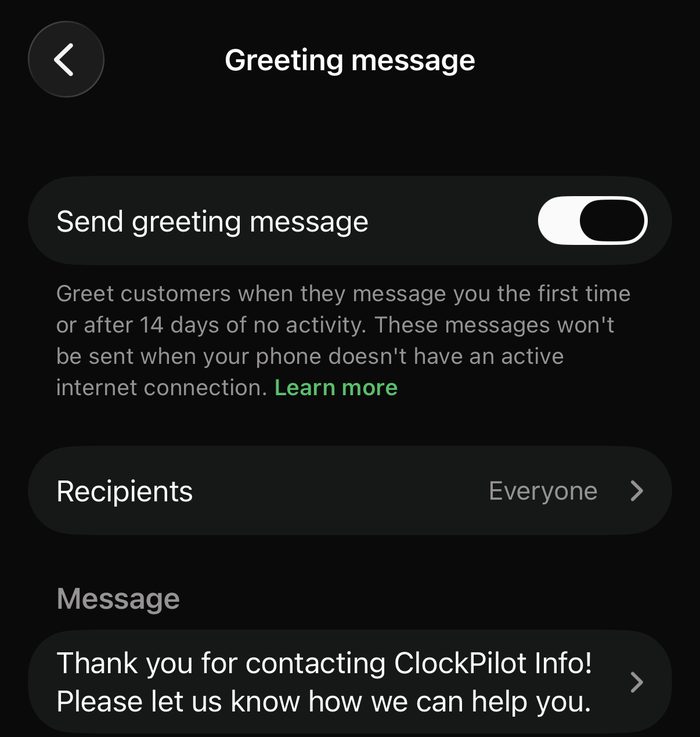
You’ll find both of these in the Tools tab. A greeting message is sent automatically the first time someone messages you, or when they come back after 14 days of no chat. Use it to ask for what you need, like “Thanks for getting in touch. Tell me your name and what trade you’re in”.
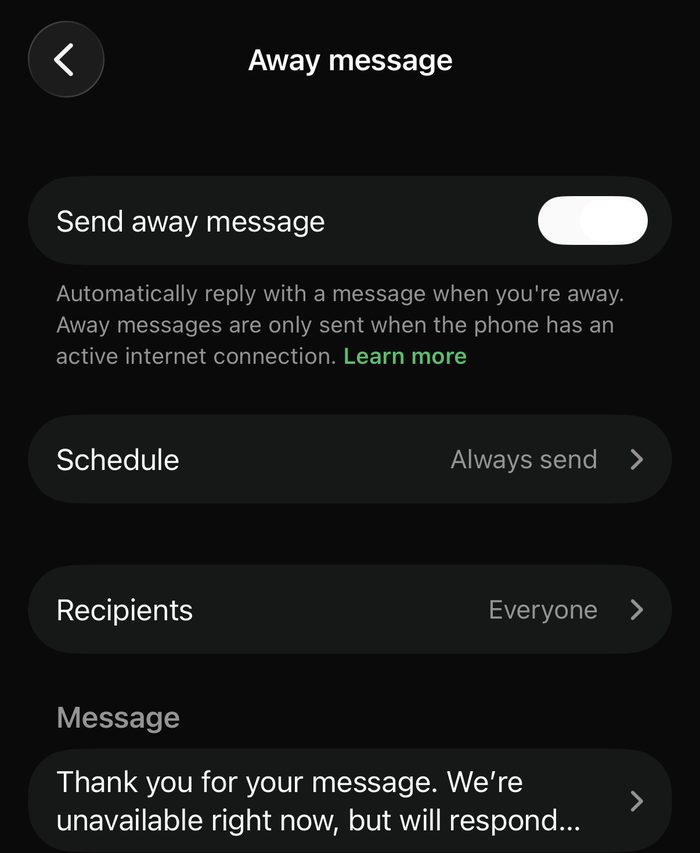
An away message is sent when you’re busy or out of hours. You can schedule it, so it goes out after 6pm or at weekends. Something like “I’m on site and can’t reply until 5. If it’s urgent, ring the office”. Nobody is left wondering whether you saw their message.
Want hours written down on the day, not guessed on a Friday? ClockPilot does it inside WhatsApp. There is a 7-day free trial.
Message me on WhatsAppLists to sort your lads
Lists let you group your chats. Make a list like “new starters”, “scaffolders”, “labourers” or “HGV”. Every list becomes a filter at the top of your Chats tab, so one tap shows just those people. You’ll find it in the Tools tab, under Lists.
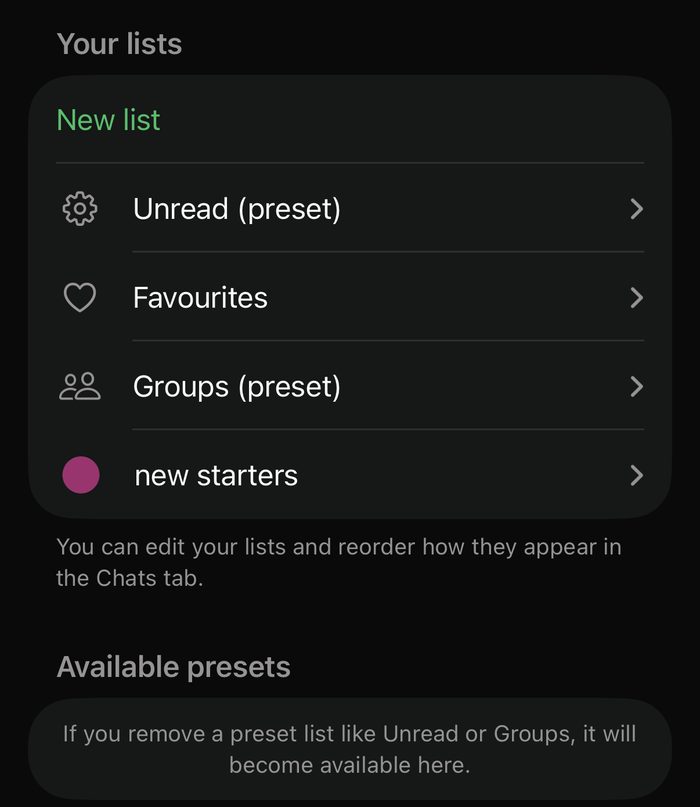
It does the same job as naming your contacts with the firm’s name at the front, but you don’t have to rename anyone. Use both and you’ll find any lad in seconds.
A business profile, and one number on more than one device
Your business profile shows your firm’s name, what you do, your address, opening hours and website. A new lad or a customer can see you’re a real firm and not a random number. Fill it in once.
You can also use one business number on up to four linked devices, like your phone and the office computer. So the boss and the office can both answer the same number. Handing out chats to different people to deal with needs a paid plan from Meta. You don’t need that for a small firm.
What it still can’t do
WhatsApp Business is good for messaging. It’s not a timesheet. It doesn’t record who started when, where they were, or how many hours they worked, so you’ll still be asking “what time did you start?” on a Friday.
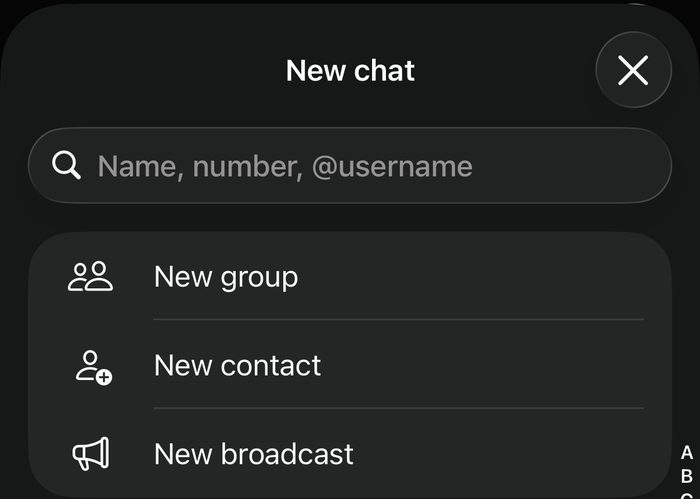
It’s the same as normal WhatsApp in one way: a broadcast list only reaches people who have saved your number. WhatsApp has also been changing its rules and prices for business broadcasts, and big marketing sends now point you to paid tools. On my phone, “New broadcast” is still there when you start a new chat, but check what yours offers before you rely on it.
That gap is why I built ClockPilot. Each lad gets a message at start time, taps “Send your current location” and is clocked in. The times are saved in a Google Sheet. There is a 7-day free trial. Message me on WhatsApp
So should you switch?
If you’re a small crew with one boss, normal WhatsApp is fine, so stay put. If you have a firm number, new starters coming in, and the same questions every week, Business is worth ten minutes. Start with the profile, a greeting message and three quick replies.
There is a 7-day free trial, and I’ll set it up for you. Message me on WhatsApp and we’ll get your lads on it.
Message me on WhatsAppWant to read more? Have a look at timesheets for scaffolders, or how to cut your weekly wage bill without docking your lads’ hours.
WhatsApp Business for construction firms: common questions
Is WhatsApp Business free?
Yes. The app is free to download and use. Some extras, like Meta’s paid plans, cost money.
Can I use WhatsApp and WhatsApp Business on the same phone?
Yes. They are two separate apps, but each one needs its own phone number.
Do quick replies and lists cost extra?
No. They are built into the free app.
Can WhatsApp Business track my lads’ hours?
No. It sends and sorts messages, but it doesn’t record who worked when. For that you need something built for it.